Edge computing is rapidly evolving, enabling smart-home enthusiasts and hardware developers to run complex machine learning models directly on single-board computers. However, running heavy deep-learning workloads like real-time object detection on a Raspberry Pi's CPU can significantly degrade overall system performance. The Raspberry Pi AI HAT+ solves this by offloading heavy computational AI workloads to dedicated hardware.
While standard demonstrations show how to run GUI-based desktop applications, they fall short for standalone, headless, or remote IoT projects. This guide walks through unlocking the potential of your Raspberry Pi 5 and the AI HAT+ using Viam to build a remotely accessible live traffic-monitoring dashboard.
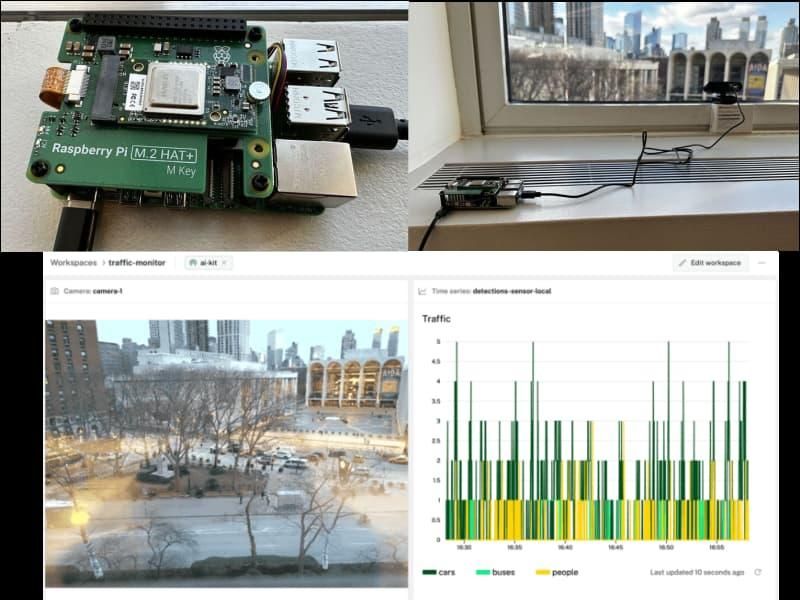
Supplies & Requirements
Before getting started, make sure you have the following hardware and accounts ready:
- Viam Account: Sign up for a free account and sign in to the Viam App.
- Raspberry Pi 5 with Active Cooler: The active cooler is highly recommended by Raspberry Pi for sustaining peak performance during heavy workloads.
- MicroSD Card & Power Supply: Standard high-quality card and stable power supply for your Pi.
- Raspberry Pi AI HAT+: Either the 13 TOPS or 26 TOPS version will work perfectly for this project.
- USB Webcam: Any compatible USB webcam.
Pro-Tip: The Raspberry Pi AI Kit may still be available on some markets, but it has been replaced by the integrated AI HAT+ going forward. Follow the official hardware documentation to physically stack the AI HAT+ on top of your Pi 5 before powering it up.
Technical Specifications Comparison
Depending on your application's complexity, you can choose between the standard or advanced configurations of the AI hardware expansion options:
| Hardware Accessory | Neural Processing Unit (NPU) | Performance (TOPS) | Target Workloads |
|---|---|---|---|
| Raspberry Pi AI HAT+ (13 TOPS) | Hailo-8L | 13 TOPS | Single-model inference, standard object detection, lightweight classification |
| Raspberry Pi AI HAT+ (26 TOPS) | Hailo-8 | 26 TOPS | Heavy multi-model pipelines, higher frame rate tracking, complex segmentation |
Step 1: Set Up Your Raspberry Pi
The Raspberry Pi boots from a microSD card. You need to install Raspberry Pi OS (64-bit) to prepare it for remote headless operations.
Install Raspberry Pi OS
- Connect the microSD card to your computer.
- Download and launch the Raspberry Pi Imager.
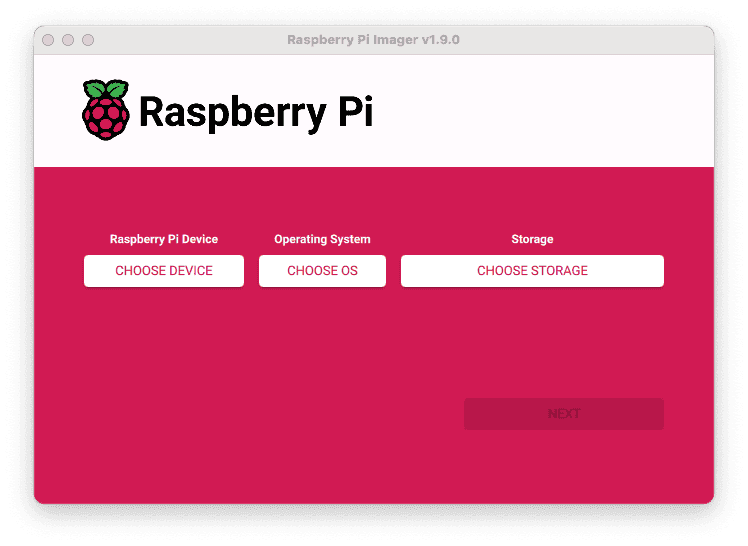
- Click CHOOSE DEVICE and select Raspberry Pi 5.
- Click CHOOSE OS and select Raspberry Pi OS (64-bit) from the menu.
- Click CHOOSE STORAGE and select your microSD card.
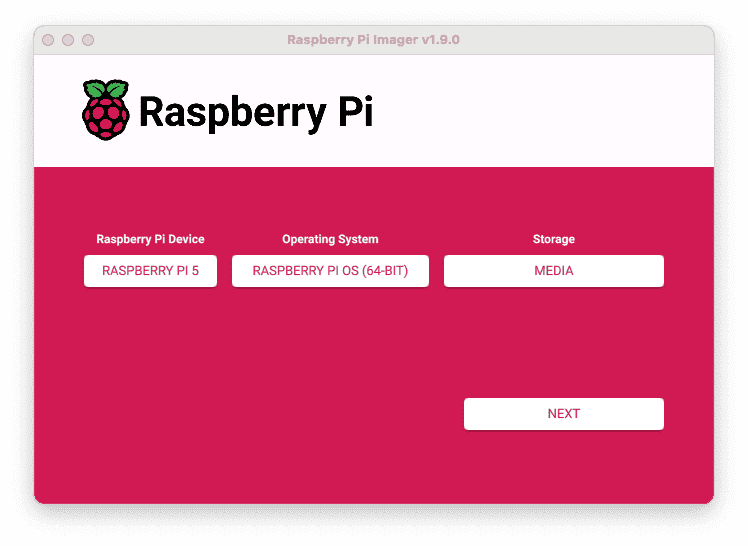
- Click Next. When prompted to apply customization settings, select EDIT SETTINGS.
- Check Set hostname (e.g.,
test). - Check Set username and password and enter your desired credentials. Avoid using the default "pi" username for improved network security.
- Check Configure wireless LAN and enter your Wi-Fi SSID and password. Ensure the Wireless LAN country matches your current location.
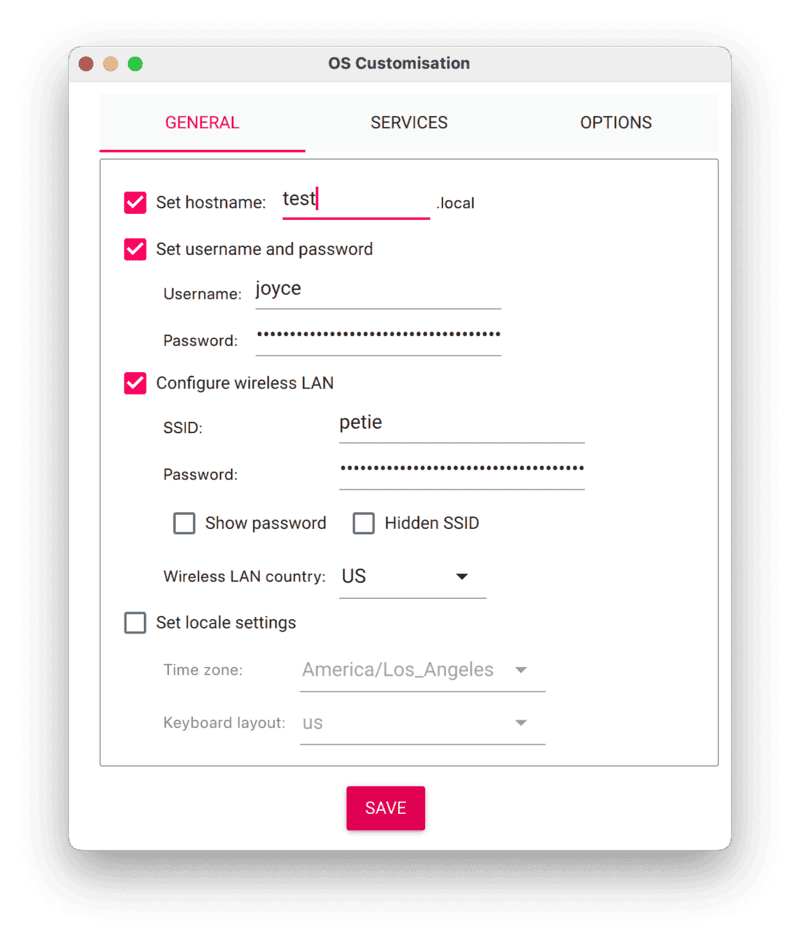
- Under the SERVICES tab, check Enable SSH and select Use password authentication.
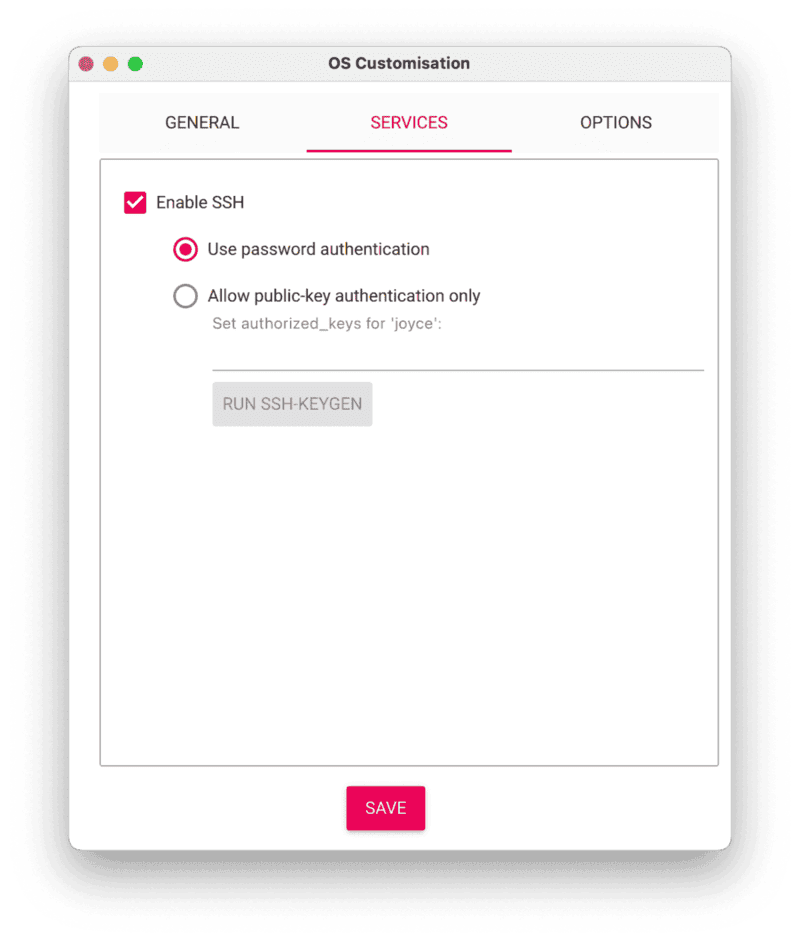
- Save the updates, confirm YES to format the storage, and wait for the verification process to finish.
Connect with SSH
Once completed, insert the card into your Raspberry Pi and power it up. Open a command line terminal and SSH into your device:
ssh <USERNAME>@<HOSTNAME>.local
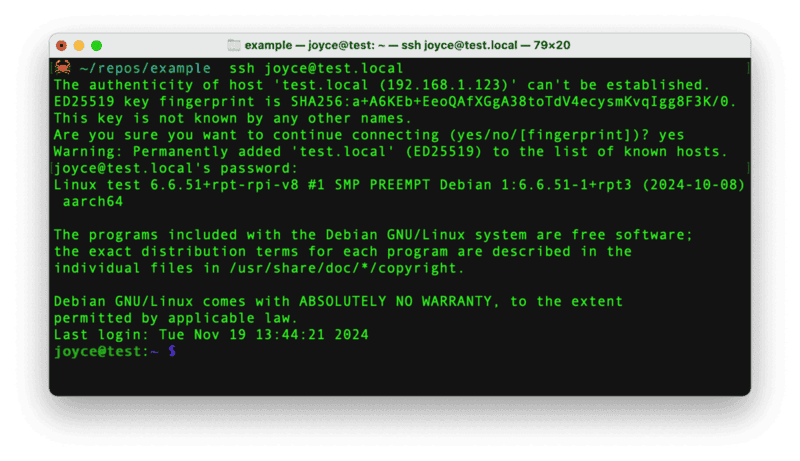
Update the OS to make sure all system packages are running on their latest versions:
sudo apt update
sudo apt upgrade
Step 2: Set Up the Hardware
With the OS running, you must configure the PCIe speeds on the Pi 5 to get the most out of the Hailo NPU.
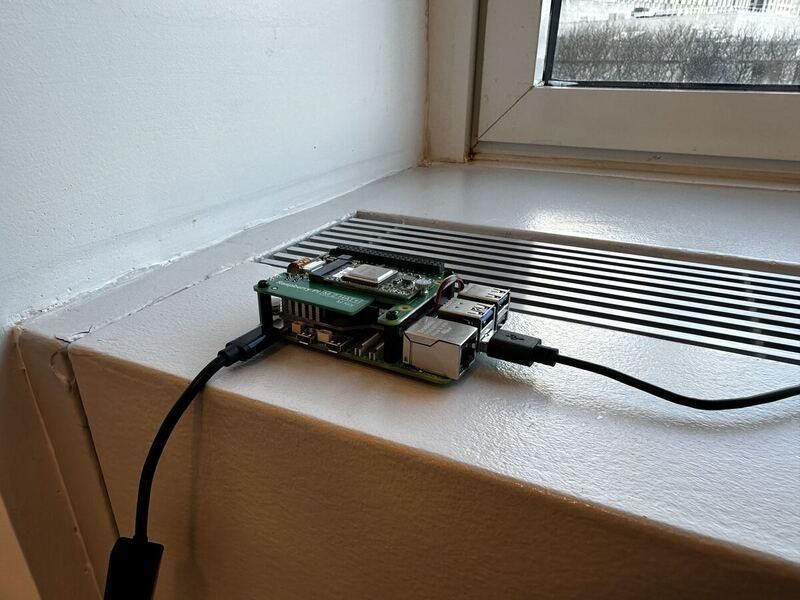
Enable PCIe Gen 3.0 Speeds
- Open the Raspberry Pi Configuration interface:
sudo raspi-config - Navigate to Advanced Options.
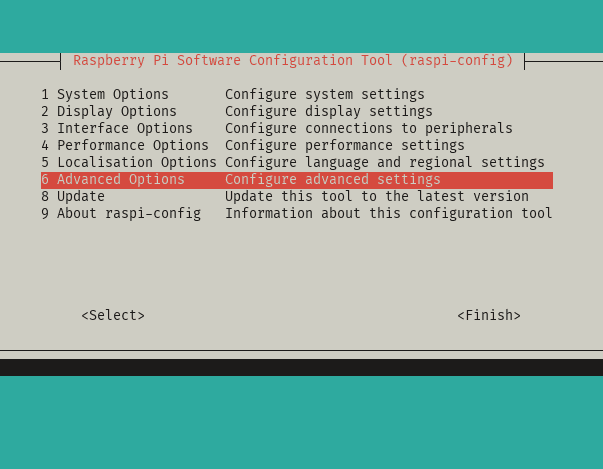
- Select PCIe Speed.
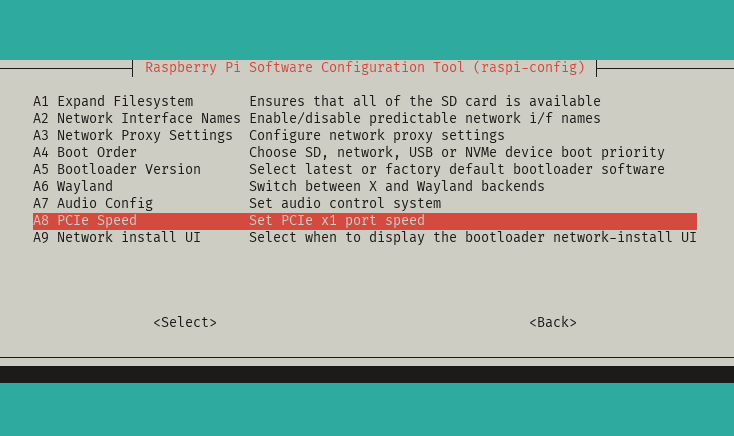
- Choose Yes to enable PCIe Gen 3 mode.
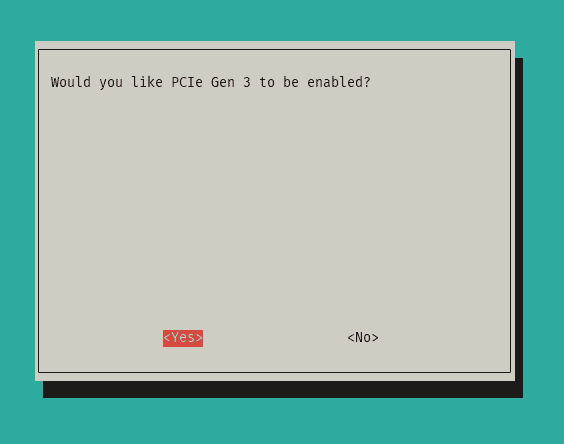
- Select Finish to exit.
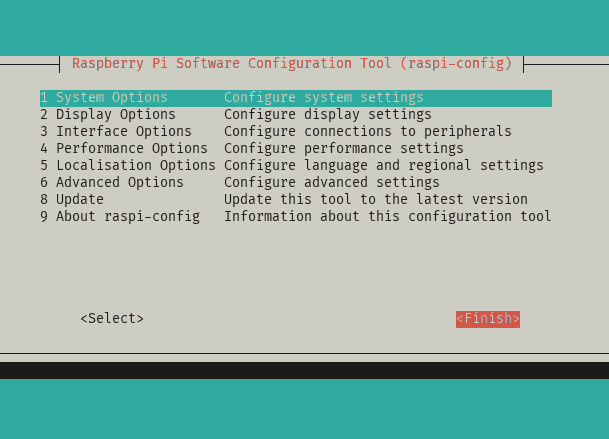
- Reboot the device:
sudo reboot
Set Up System Dependencies
Reconnect via SSH and install the system packages for the Hailo-8 NPU module:
sudo apt install -y hailo-all
Once installed, reboot the Raspberry Pi again (sudo reboot), reconnect, and verify the hardware is correctly identified:
hailortcli fw-control identify
You should see output detailing the device profile, confirming the chip is ready:
Executing on device: 0000:01:00.0
Identifying board
Control Protocol Version: 2
Firmware Version: 4.17.0 (release,app,extended context switch buffer)
Logger Version: 0
Board Name: Hailo-8
Device Architecture: HAILO8L
Serial Number: HLDDLBB234500054
Part Number: HM21LB1C2LAE
Product Name: HAILO-8L AI ACC M.2 B+M KEY MODULE EXT TMP
Pro-Tip: Enabling PCIe Gen 3 speeds is critical. The PCIe Gen 2 default bandwidth can bottleneck processing speeds, causing lag in high-definition video pipelines.
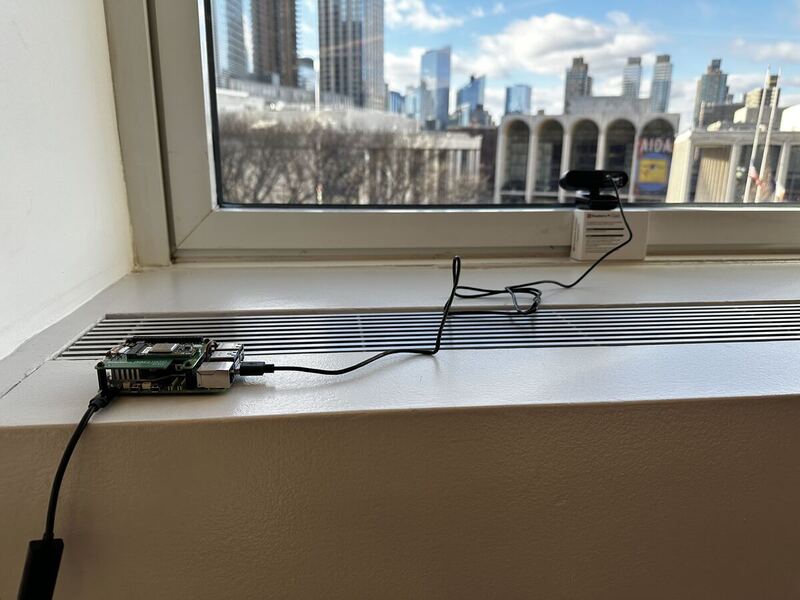
Connect your USB webcam to any USB port on your Raspberry Pi and position it facing the targeted area (such as a roadway window).
Step 3: Configure Your Machine and Peripherals
We will configure the machine components through the cloud using Viam.
Configure Your Machine in Viam
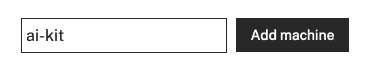
- Go to the Viam App dashboard, navigate to the LOCATIONS tab, type a machine name, and click Add machine.
- Click View setup instructions.
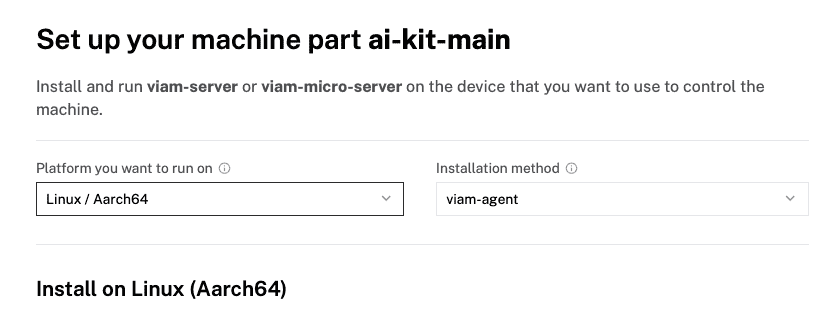
- Select Linux / Aarch64 as the platform and keep viam-agent as the installation method.
- Copy the installation command and run it directly in your SSH session on the Pi.
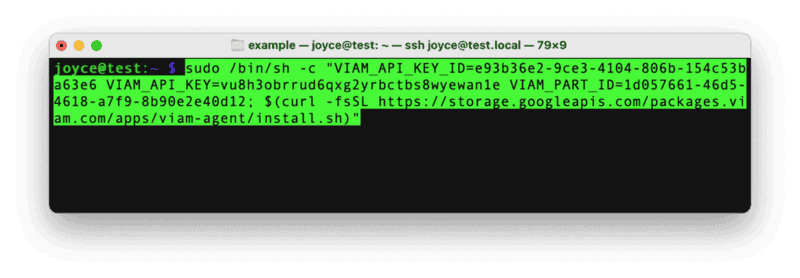
- Once the terminal setup completes, the Viam app will show a successful connection status.

Configure the Webcam
- Under the machine's CONFIGURE tab, click the + icon in the left menu and select Component.
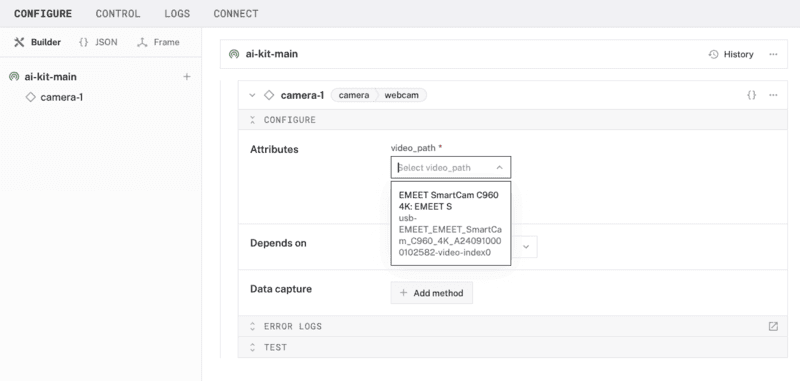
- Select camera, find the webcam module, and name it
camera-1. - Under Attributes, choose the appropriate video path (typically
/dev/video0).
- Click Save in the top right.
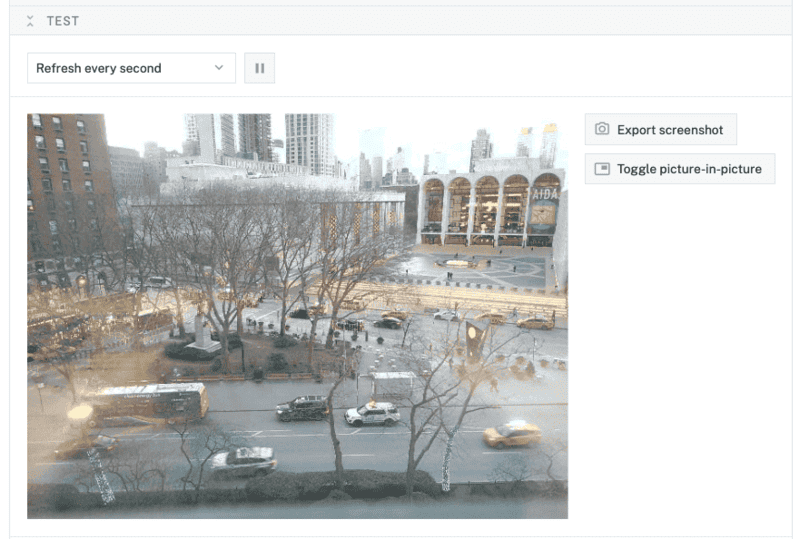
- Expand the TEST section on the camera panel to confirm you can see a live video feed.
Configure the Vision Service
- Click the + icon on the configuration layout and select Service.
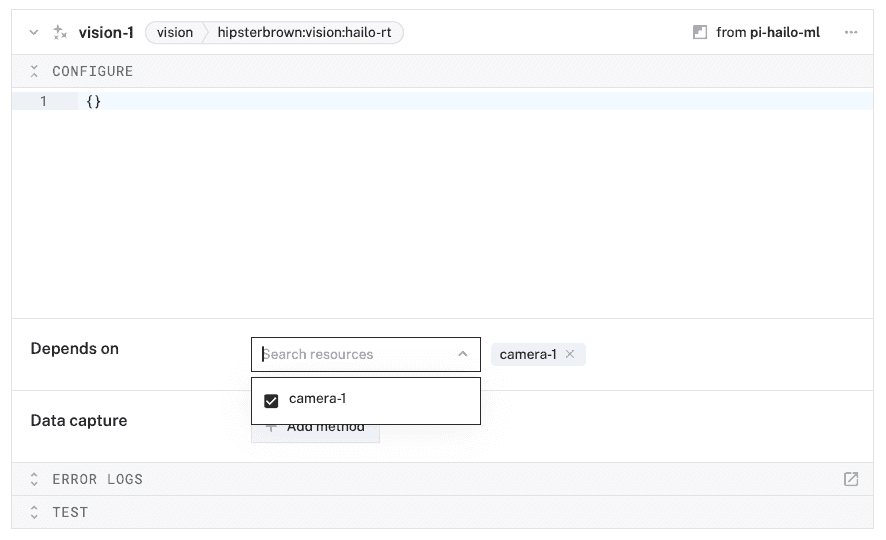
- Select vision, and add the
hailo-rtmodule. Leave the default name asvision-1. - In the Depends on field, select
camera-1.
- Click Save.
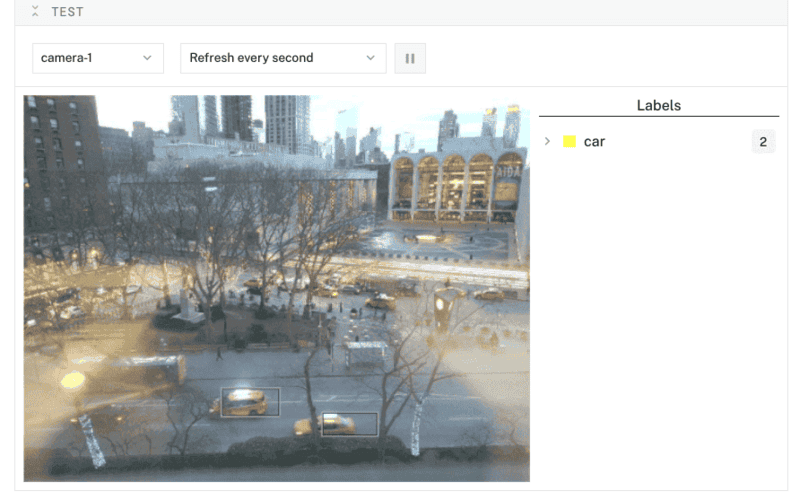
- Test the vision service at the bottom of the panel to see the live feed annotated with YOLO object detection bounding boxes.
Configure the Detections Sensor
- Click the + icon and select Component. Choose sensor and select the
detectionsmodule, naming itsensor-1. - Under Attributes, add the following JSON configuration to target specific labels:
{
  "camera": "camera-1",
  "detector": "vision-1",
  "labels": ["car", "bus", "person"]
}
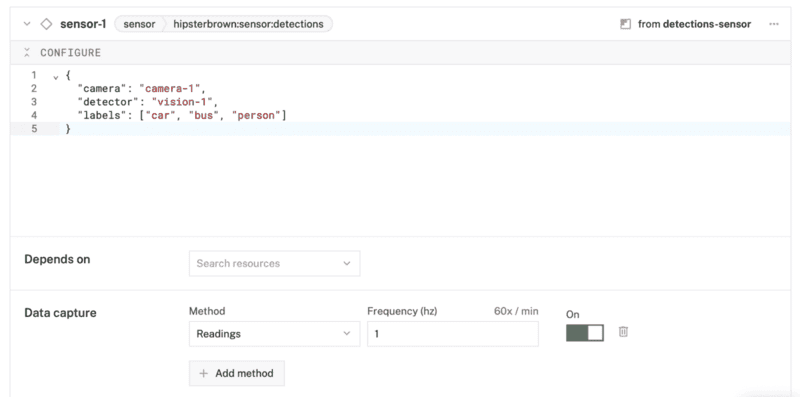
- Under Data capture, click + Add method. Set the method to
Readingsand frequency to1Hz. - Click Create data management service in the configuration box to automatically configure a storage service (
data_manager-1).
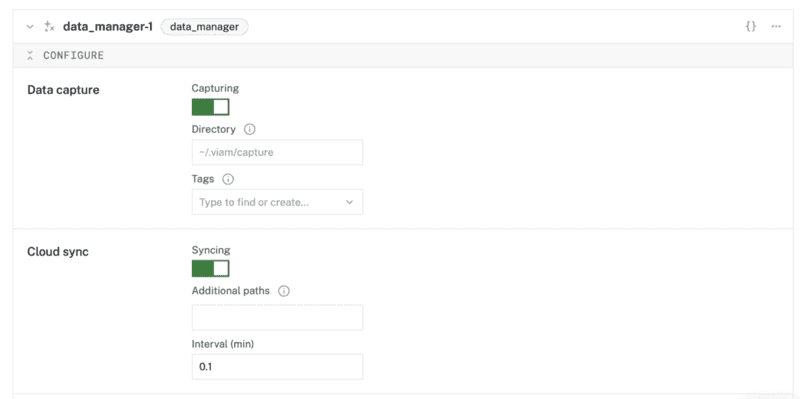
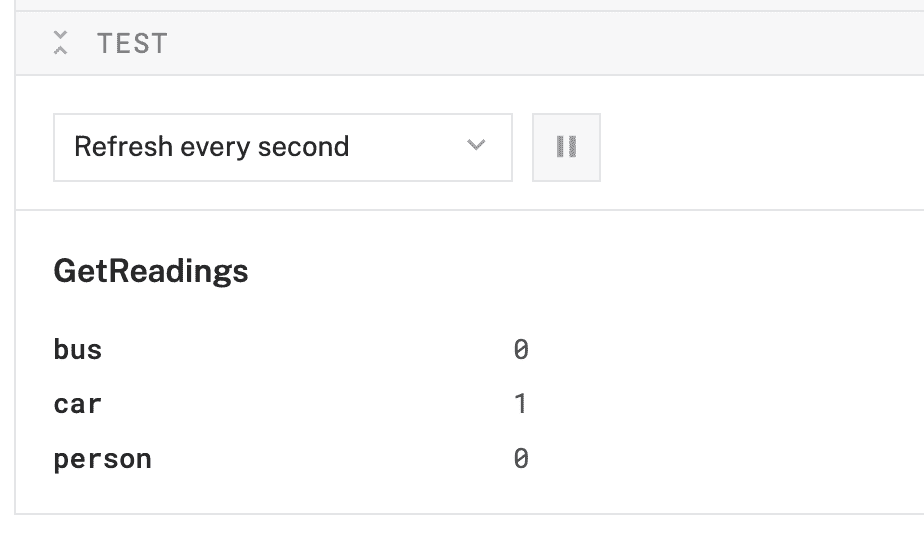
- Click Save. Expand the sensor TEST section to watch the raw numeric counts of cars, buses, and people update automatically.
Step 4: Create Your Traffic Dashboard
We can now organize our telemetry into a remote visual dashboard using Viam's tele-operations feature.
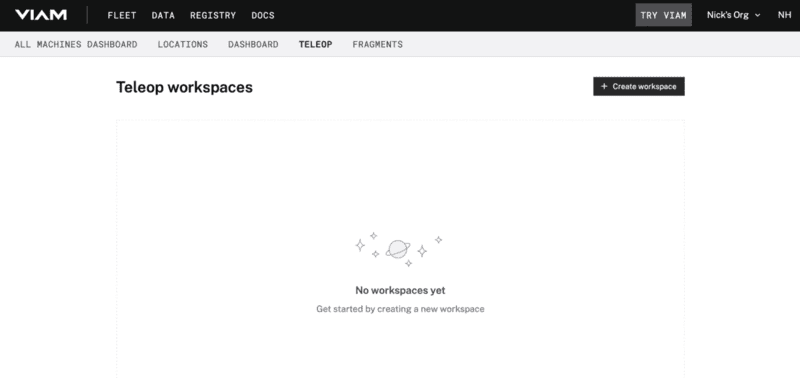
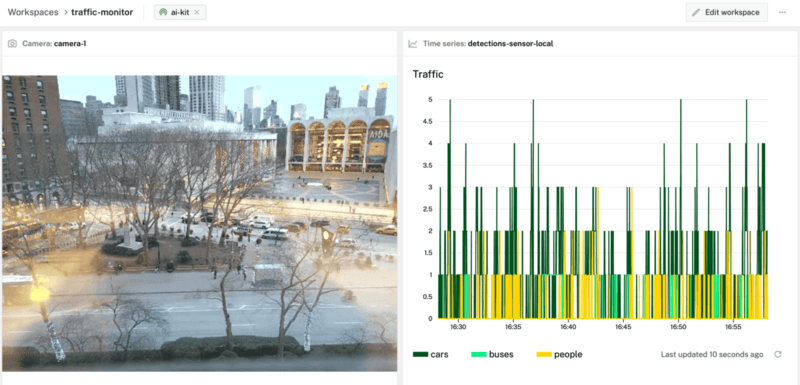
- Navigate to the main Viam workspace page and select the TELEOP tab. Click Create workspace.
- Name your workspace (e.g., "Traffic Monitor").
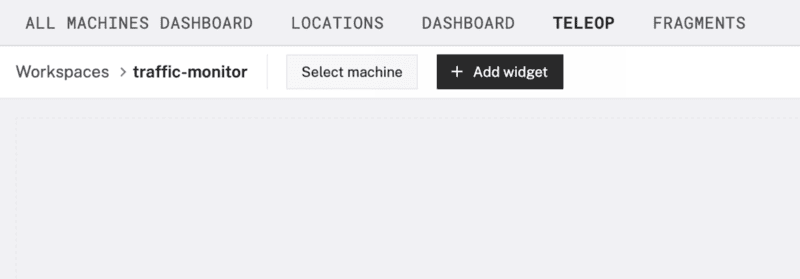
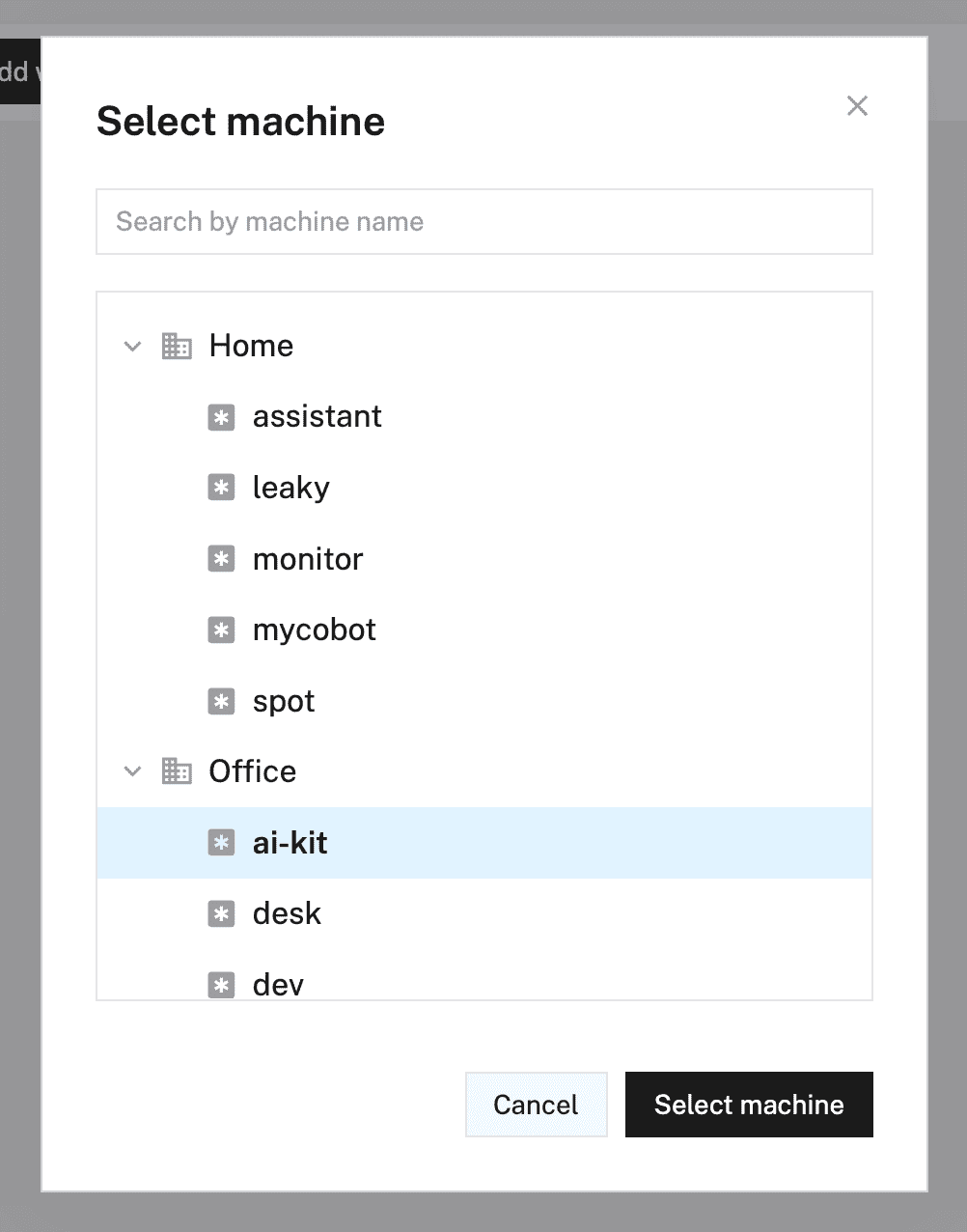
- Click Select machine and select your active Raspberry Pi from the list.
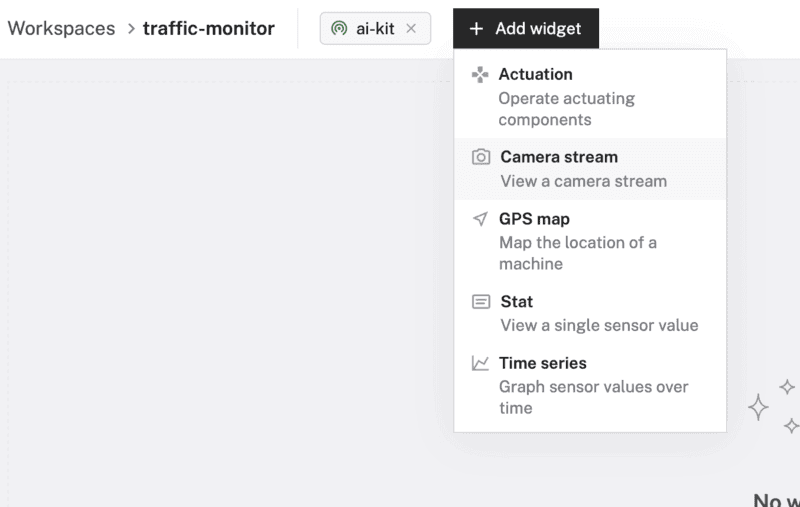
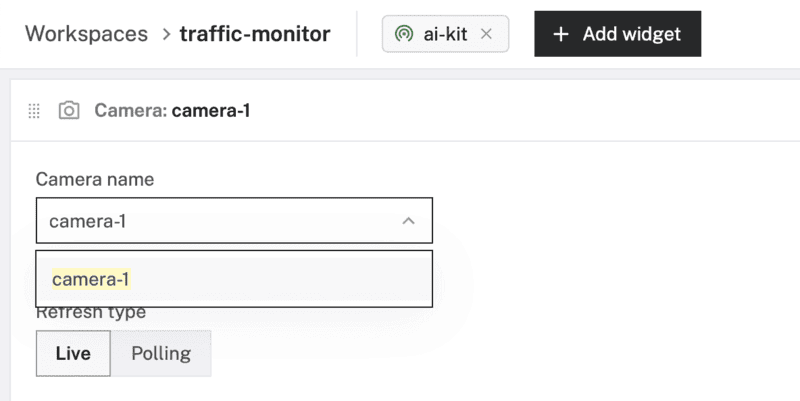
- Click + Add widget and select Camera stream. Configure it to pull from
camera-1with "Live" refresh.
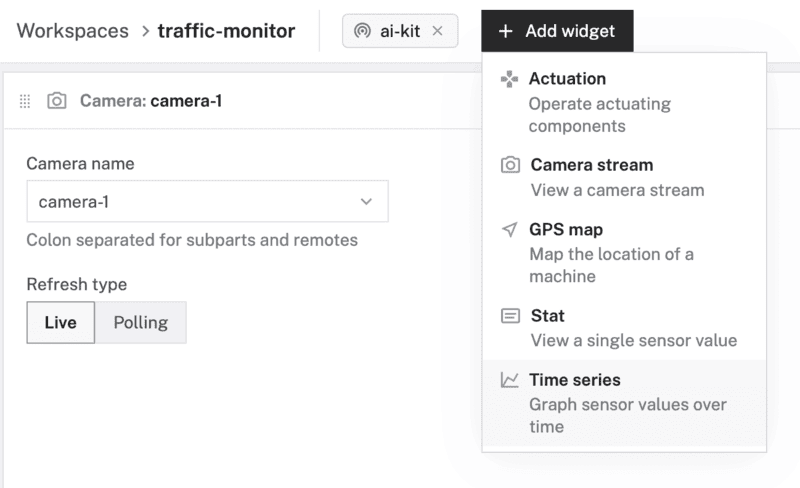
- Click + Add widget and select Time series to plot target numbers. Set the title to "Traffic" and set the time range to 30 minutes.
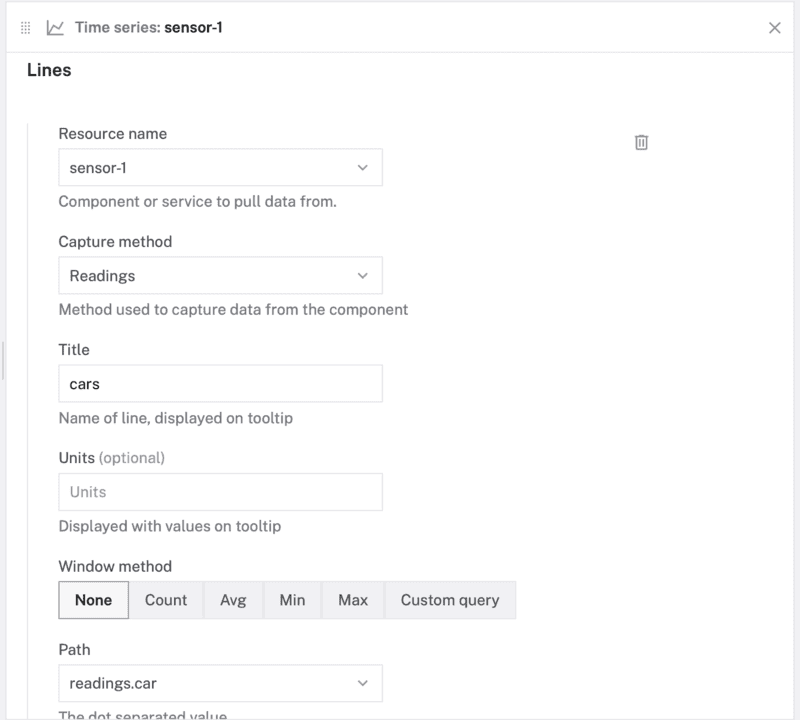
- Under Lines, configure the following telemetry mapping:
- Resource name:
sensor-1 - Capture method:
Readings - Title:
cars - Path:
readings.car
- Resource name:
- Click + Add line to map
bus(readings.bus) andperson(readings.person).
- Click Save changes on the workspace. Your dashboard will now display real-time inference data and visual streams remotely!
Step 5: Summary & Next Steps
You have now deployed a highly optimized edge system capable of low-latency, hardware-accelerated computer vision. By utilizing the Viam platform and the Hailo-8L accelerator, you offloaded intense processing tasks from the Pi’s CPU, maintaining low operating temperatures and reliable performance.
You can build further on this project by:
- Connecting physical LEDs to the Pi's GPIO pins to model a smart city control system based on real-time traffic density.
- Integrating your edge sensor directly into Home Assistant to trigger smart lights or driveway alerts.
- Deploying your vision stack on a mobile robot or rover to enable active spatial navigation.
For custom applications, you can explore precompiled models in the Hailo Model Zoo or even retrain a YOLO model on your own datasets.
Over to You!
What edge AI applications are you building with the Raspberry Pi AI HAT+? Let us know in the comments below!