Splitting a model for 3D printing doesn’t usually require a dedicated application. Standard slicers like Bambu Studio, PrusaSlicer, OrcaSlicer, and Cura can handle many everyday cutting tasks and supply connectors for assembling separated parts. Similarly, beginner CAD tools like Tinkercad allow makers to manually build negative volumes, duplicate geometries, and manually construct alignment pins.
However, traditional slicers struggle when models have complex, organic contours that defy simple, flat planar cuts. Model Splitter addresses this challenge by providing surface-level cutting tools, automated build-volume sizing, and automated connector creation directly within a browser interface.
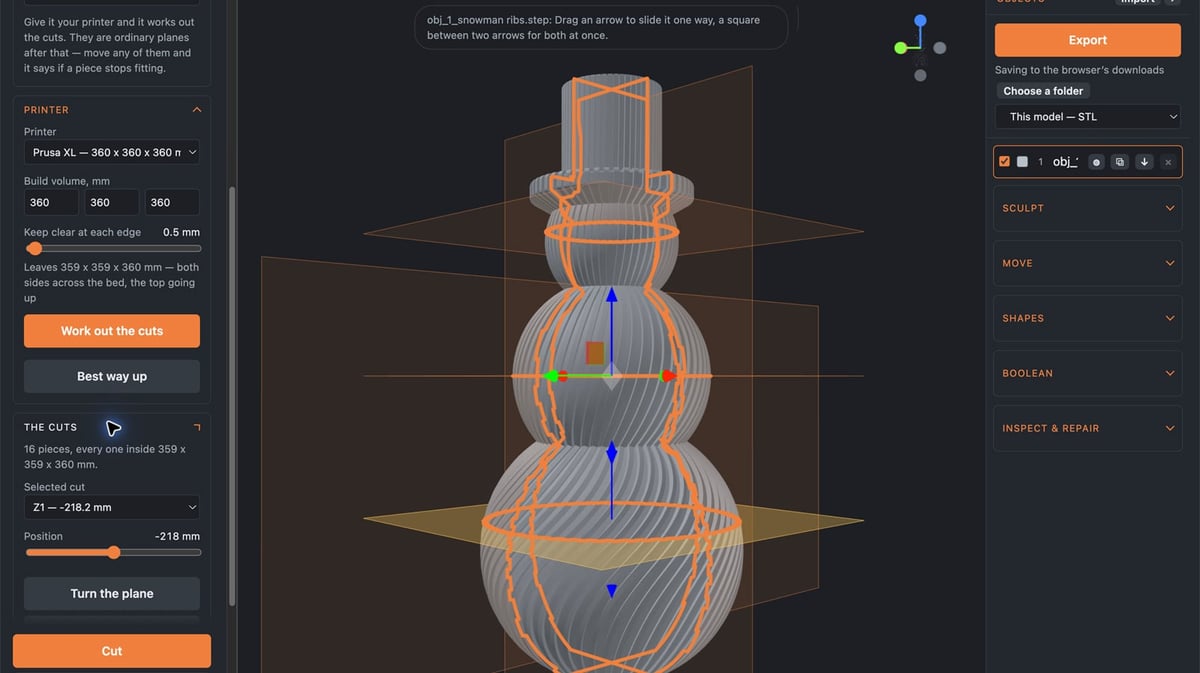
Software Breakdown & Testing Workflow
1. Model Splitter (Public Beta)
Model Splitter is a dedicated browser-based utility designed to streamline cutting, joint generation, and geometry preparation before sending files to a slicer. Unlike CAD-heavy workflows that require manual boolean operations, Model Splitter focuses specifically on segmenting large or delicate models.
Key Specs:
- Platform: Web browser (processes models locally)
- Supported File Formats: STL, 3MF
- Primary Cutting Modes: Plane (with ring isolation), Paint to Cut, Rope (custom continuous seam), Auto multi-plane
- Geometry & Prep Tools: Integrated dowel/socket generation, Boolean Union, basic shape primitives, mesh inspection, and sculpting brushes
- Pricing: Free (currently in public beta)
Pro-Tip: When working with intricate geometries crossed by multiple planar sections, click an individual intersection ring on the cutting plane to isolate and cut only the targeted section rather than slicing through the entire model.
Test Case 1: Taking Apart Delicate Geometry (T. rex Skeleton)
The initial test examined a T. rex skeleton model featuring thin bone structures and separated features.
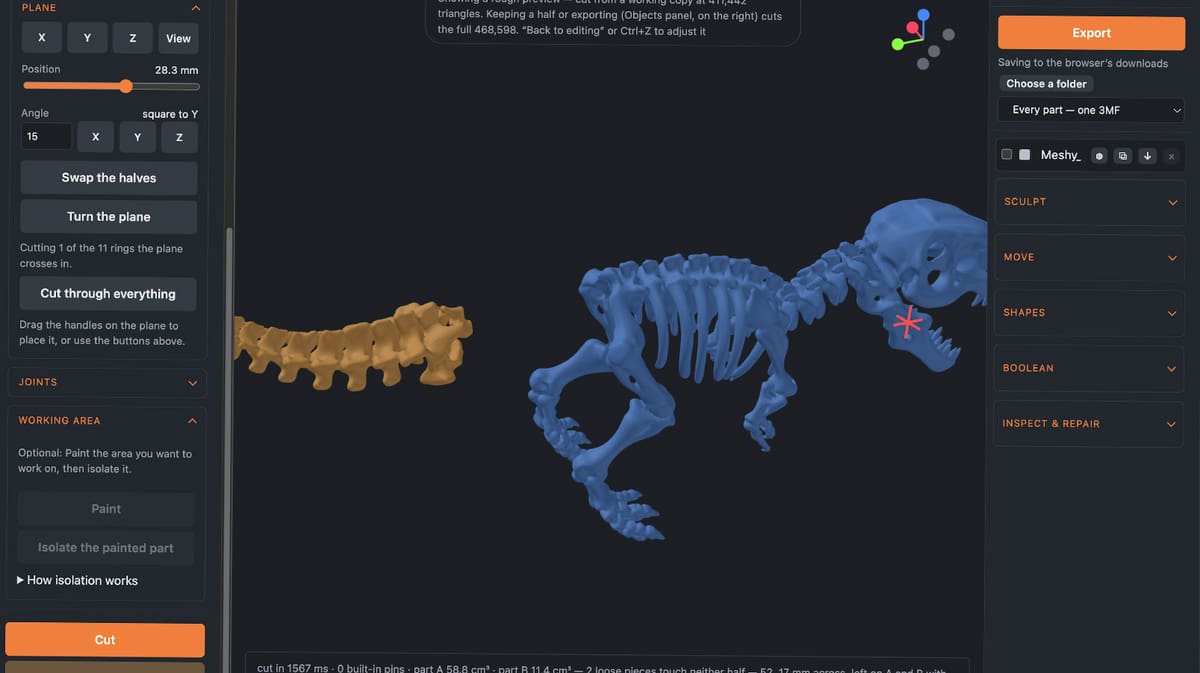
- Paint to Cut: While functional for painting designated sections, selecting recessed surfaces on the backside proved time-consuming.
- Plane with Ring Targeting: Switching to the planar cut enabled faster division. Model Splitter allowed selecting an individual intersection ring out of 11 available intersections, isolating the tail without clipping adjacent geometry.
- Mesh & Joint Feedback: The software flagged two loose disconnected pieces in red for inspection and noted that the cut face was too narrow to accommodate a mechanical alignment pin.
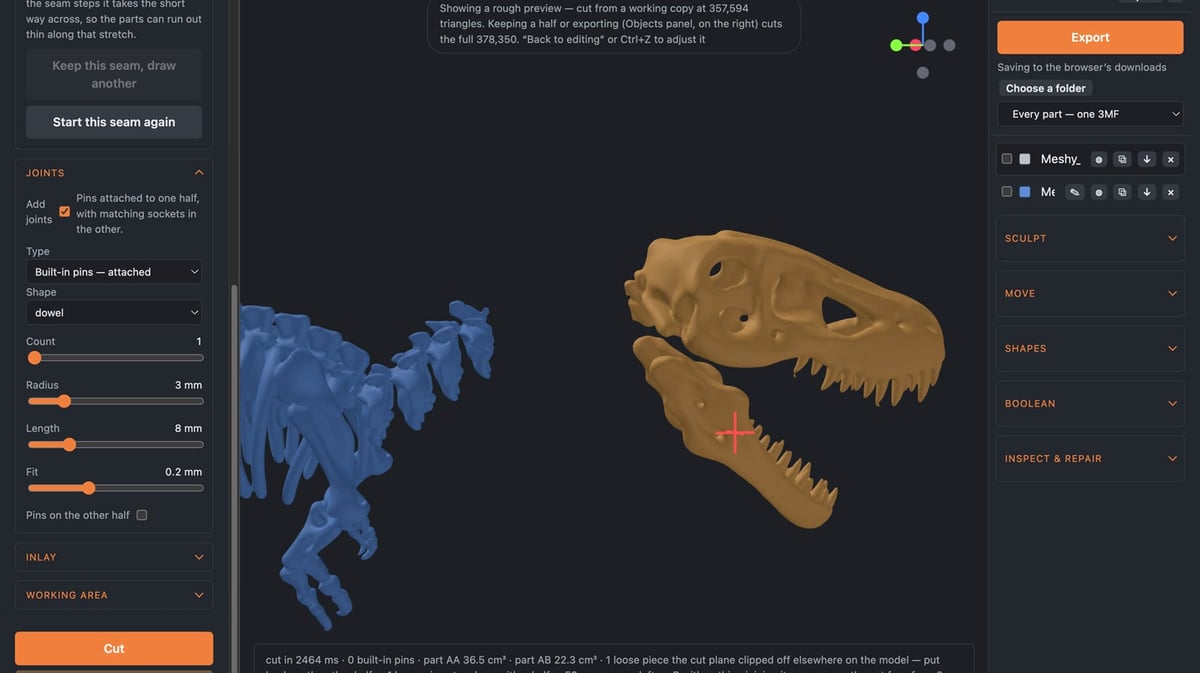
- Custom Seams with Rope: Separating the skull was handled using the Rope tool. This tool allows users to draw a seam across visible geometry in stages, rotate the model, and reconnect to the anchor point to close the seam. With the cut set to "Follows the seam," the head was separated cleanly, and the software again alerted the user that the 2.6 mm contact patch lacked sufficient thickness for pin insertion.
Pro-Tip: In Model Splitter's Rope mode, avoid relying exclusively on the upper-right view gizmo; right-dragging your mouse still controls 3D rotation while maintaining the active seam drawing state.
Test Case 2: Automatic Splitting & Geometry Additions (Snowman)
To evaluate multi-part automated segmentation, a solid snowman model was loaded and scaled against target printer volumes.
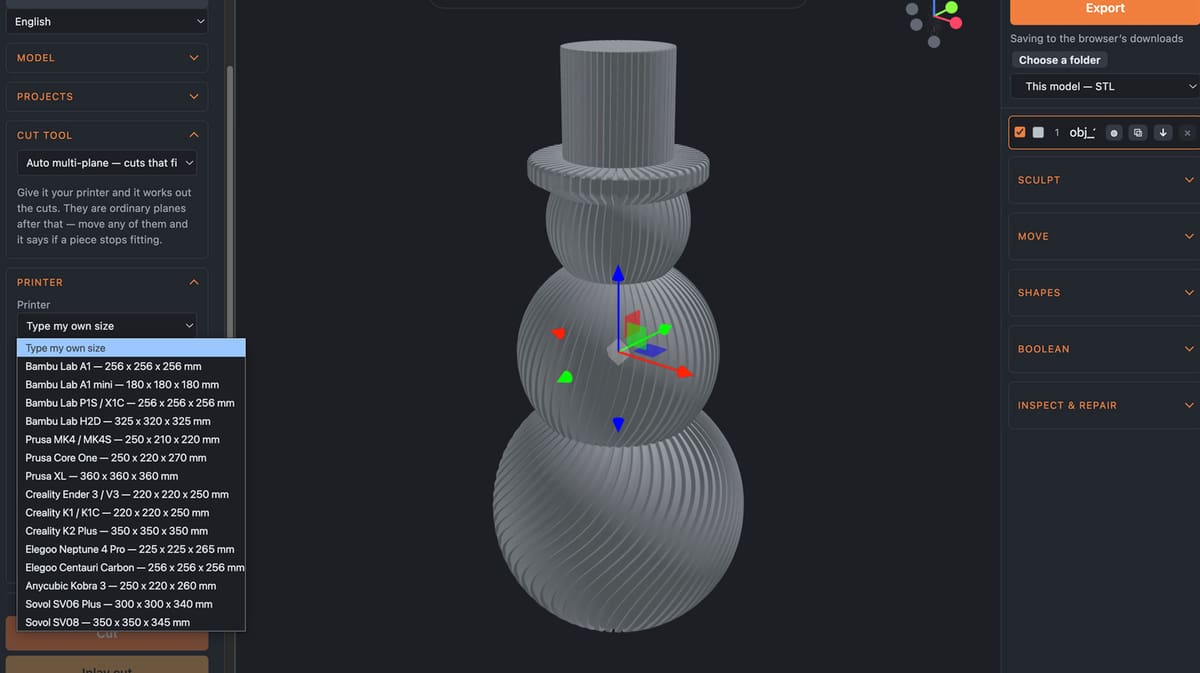
- Auto Multi-Plane: Using printer presets (such as the Prusa XL), the tool calculates how many sections are needed to fit oversized prints. At 500 × 500 × 1,101 mm, the tool generated a 16-piece split layout. Sized down to 500 mm in height, it adjusted the split requirement to two parts.
- Aesthetic Placement: Cuts generated via Auto multi-plane focus on dimensional boundaries rather than natural model seams, though planes can be manually adjusted afterward while live fit feedback remains visible.
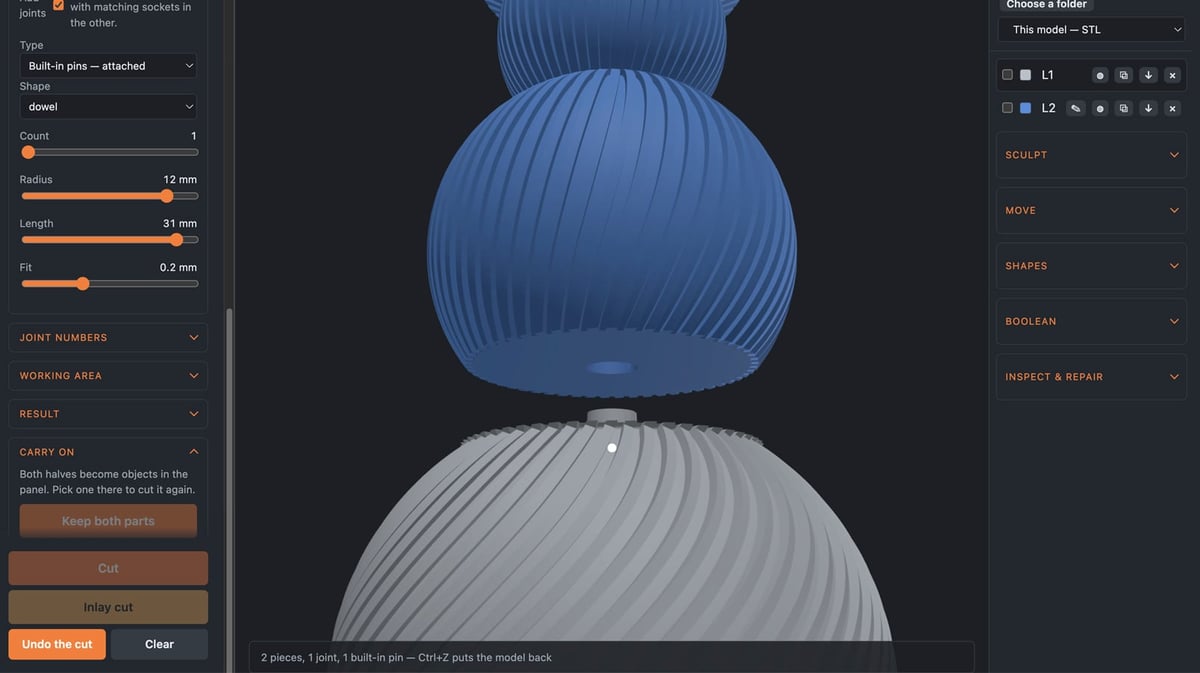
- Built-in Connectors: The split successfully integrated an alignment dowel and matching socket. Pin radius, length, and socket clearance tolerances could be adjusted and regenerated easily.
- Shapes and Boolean Unions: Users can import basic shapes (such as adding spheres for buttons) and join them using Boolean Union. Keep in mind that Boolean operations strictly require selecting exactly two objects at a time.
- Sculpting Brush Limitations: Smoothing brushes proved difficult to control. The brush frequently altered surrounding mesh ridges rather than localized features, and warnings appeared when the brush size conflicted with the underlying triangle resolution.
Transformation, Scaling, and Duplication
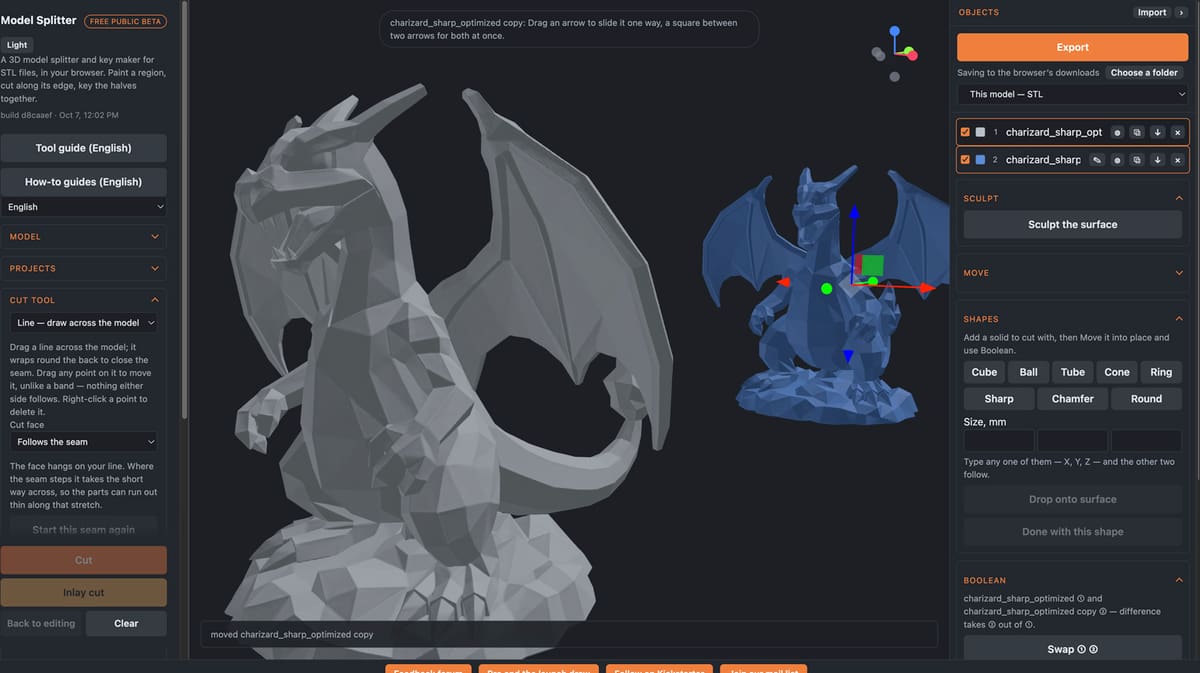
Beyond splitting, Model Splitter provides baseline transformation tools allowing objects to be duplicated, resized, and repositioned on the build canvas.
Comparison Matrix
| Tool / Workflow | Primary Cutting Mechanism | Connector Generation | Automation Features | Platform & Cost |
|---|---|---|---|---|
| Model Splitter | Multi-plane, Paint to cut, Rope seam | Integrated dowels & sockets with clearance adjustment | Auto multi-plane based on printer build dimensions | Browser-based (local execution); Free (Beta) |
| Standard Slicers (Bambu, Prusa, Orca, Cura) | Planar cutting planes | Basic pins, dowels, and dovetail connectors | Manual placement per plane | Desktop app; Free / Open-source |
| Basic CAD (Tinkercad) | Boolean subtractive cutouts via holes | Manual shape modeling and alignment clearance | None; completely manual | Web-based; Free |
Summary & Final Recommendation
Model Splitter’s cutting capabilities provide a noticeable workflow upgrade over typical slicer planar cuts:
- When to use Model Splitter: Ideal for large prints that exceed your printer’s build envelope, organic sculptures needing custom seams (via the Rope tool), or models where you need automated feedback regarding disconnected geometry and wall-thickness clearance for joint pins.
- Current Limitations: The user interface has a slight learning curve regarding selection vs. surface manipulation tools, and the digital sculpting brushes lack the fine control needed for precise mesh finishing.
Because the utility is currently free during its public beta and processes mesh files locally in the browser, it is a practical tool to include in your 3D printing prep toolkit.
Which tools do you currently rely on to cut oversized models or design custom joints: your slicer, dedicated CAD, or browser utilities? Share your preferred workflow below!